PRODUCT WORKFLOW / 03
THE WORKFLOW,
EXPLAINED.
A practical guide to the adFURY interface, Photoshop source setup and campaign production.
01 / GETTING STARTED
START WITH A PSD.
adFURY works inside Photoshop. Save your source with a recognised ad name containing a logical dimension and an ad format, for example Client_Campaign_640x360_DV360_01.psd. Place two horizontal and two vertical guides around the banner area. Your canvas can remain larger than the final banner.
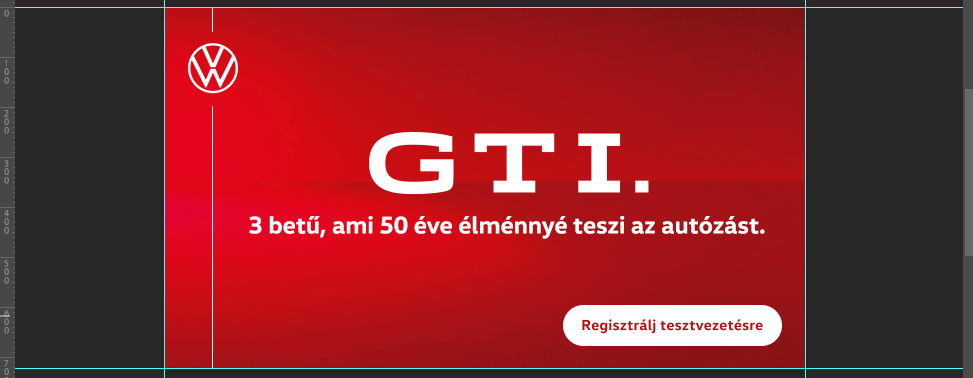
- Prepare named layers and use unique actor identifiers.
- Set guides around the final logical banner area.
- Write animation in adTWEEN and create Story frames if required.
- Convert, inspect in adVIEW and publish the campaign.
02 / THE INTERFACE
KNOW YOUR WORKSPACE.
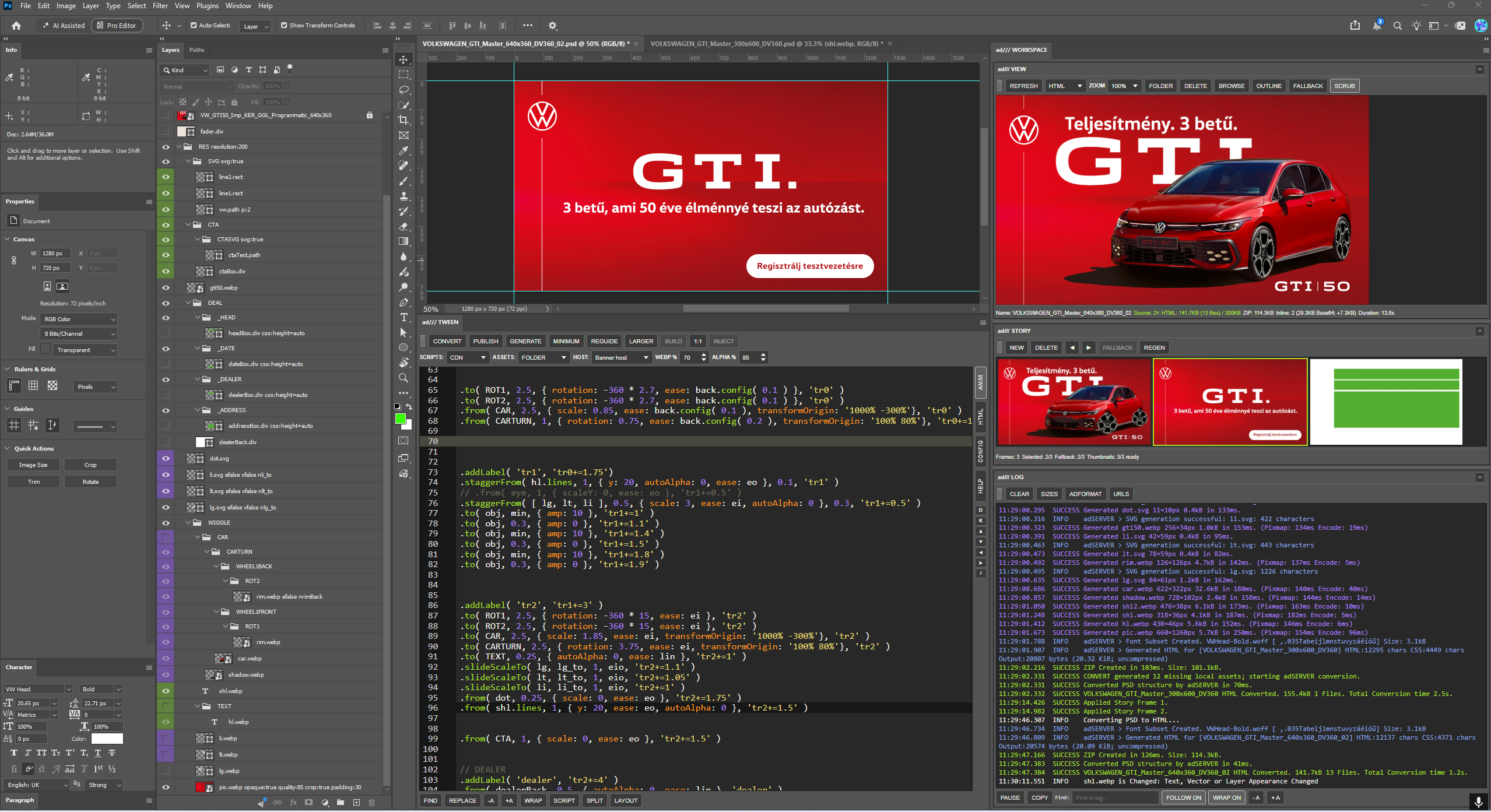
The original screenshot below shows the Photoshop layer tree, the adTWEEN script editor and the three stacked adWORKSPACE views: adVIEW, adSTORY and adLOG.
03 / ADTWEEN
CREATE, CONVERT, BUILD.
adTWEEN contains the TweenScript editor, production controls and configuration. Its script is stored with the PSD.


 CONVERTConverts the current PSD structure through adSERVER and builds the HTML package.SHIFT + CONVERTRegenerates enabled local assets before converting and building.
 GENERATEGenerates selected eligible raster and SVG assets. Shift generates all enabled local assets.
 BUILDRebuilds the HTML package from cached conversion data, current assets and script.
 INJECTUpdates the existing HTML package with the current TweenScript without a new conversion.
 SPLITSplits a selected multiline Photoshop text layer into editable line layers.
 MINIMUM / REGUIDE / LARGERManage the physical canvas and guide-defined banner area.
 PUBLISHPrepares and uploads eligible campaign output to the selected Preview Host.
Shift actions use the same button with the modifier key. Menu-only commands are described in text because their menus are not open in this screenshot. Convert All processes open valid ad PSDs sequentially. It regenerates assets, converts, saves and closes the processed sources.
04 / SCRIPTED ANIMATION
POWERED BY GSAP 3.
Use named Photoshop layers as banner actors and write your motion in the adTWEEN editor. GSAP timelines are constructed in code; adFURY is a script-driven workflow.
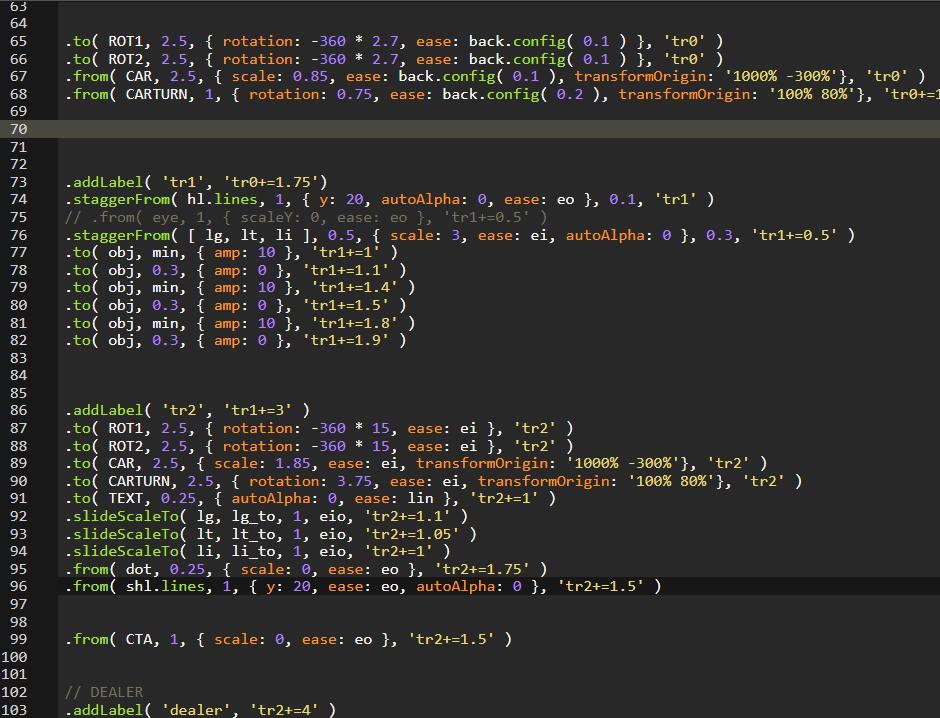

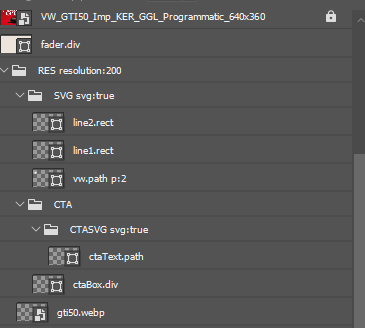
Use .txt or .text actors and the documented split:lines, split:words or split:characters parameters for separately animated text elements.
05 / ADVIEW
INSPECT THE OUTPUT.
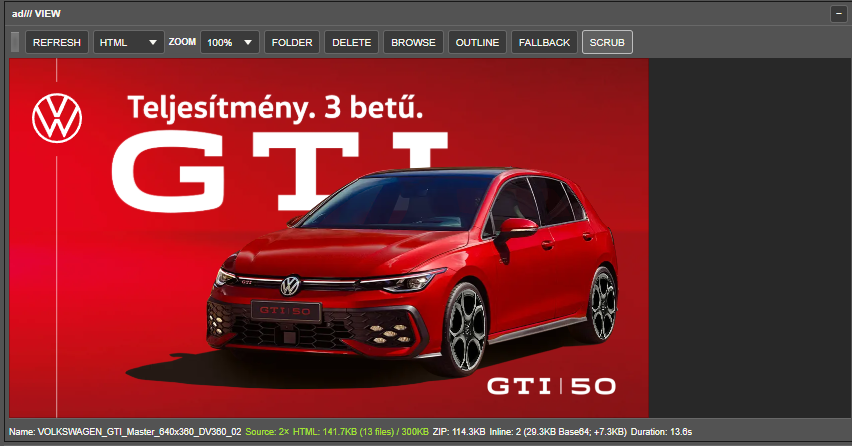
The artifact selector shows views available for the active source: HTML, ASSETS, FALLBACK, FRAMES, MP4 and GIF. Availability depends on which files exist and on the ad format.

06 / ADSTORY
MANAGE FRAME STATES.
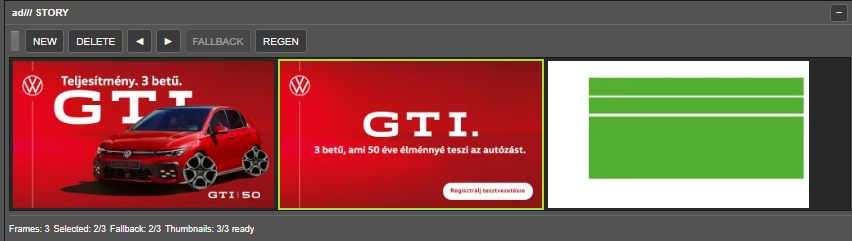
adSTORY uses Photoshop Layer Comps for its frames. Use NEW and DELETE to manage frames, arrows to reorder them and FALLBACK to select the static frame when the ad format requires one. REGEN refreshes thumbnails and required fallback. Thumbnails derive from the guide-defined area.

07 / ADLOG
SEE WHAT HAPPENED.
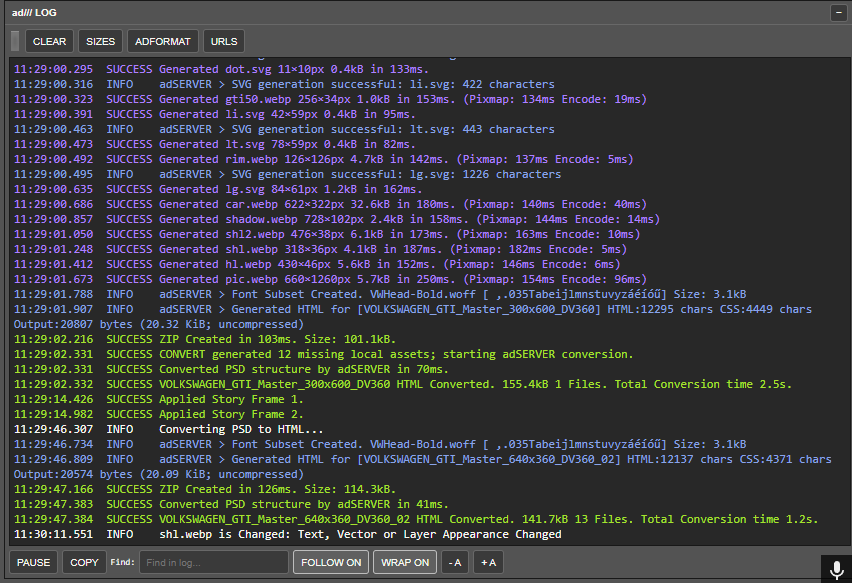
adLOG reports operation progress, success, warnings and errors. SIZES reports generated file sizes; ADFORMAT describes active format rules. CLEAR clears the visible view, PAUSE freezes display, COPY copies diagnostic records and FOLLOW keeps the latest messages in view.


08 / EXPORT AND PUBLISH
FROM SOURCE TO DELIVERY.
CONVERT builds HTML from the PSD structure. BUILD assembles current assets, applies format rules and produces the banner ZIP. PUBLISH prepares a campaign preview and uploads it to the chosen Preview Host. Preview Hosts and credentials are configured separately.
Check the final package in its actual delivery environment and required browsers before launch.
09 / FORMATS AND ASSETS
MAKE EVERY BYTE COUNT.
adFURY supports named raster, SVG, text, shape and external media actors. Parameters control quality, export density, cropping and placement. FOLDER, INLINE, ROOT and AUTO INLINE are package assembly modes. AUTO INLINE selects eligible assets using encoded size against the format limit.

Different formats have different restrictions. The Google Ads configuration blocks WebP and AVIF actors; use a supported PNG or JPG output when required. Installed fonts can be subset to the glyphs used by the banner.
10 / TROUBLESHOOTING
CHECK THE SIGNAL.
MAKE YOUR NEXT CAMPAIGN FASTER